Saturday, 25 February 2017

System Profile options Types and uses

hierarchy and Levels of Profile options :-

Profile categories, or hierarchy types, enable system administrators to group and set profile options according to their business needs or the needs of the installation. You can view and set a profile option at the levels of its hierarchy type. As a system administrator, you can use the System Profile Values window in Oracle Applications Forms to set up profile options for your user community. If you change a user profile option value, your change takes effect as soon as your users log on again or change responsibilities, and bounce the apache server. When you set up a user profile, you provide Oracle Applications with standard information (such as printer) that describes a user, Responsibility, application, or site. You can set up values for user profile options at each of the following profile levels.
  • Site: Option settings pertain to all users at an installation site.
  • Application: Option settings pertain to all users of any Responsibility associated with the application.
  • Responsibility: Option settings pertain to all users currently signed on under the Responsibility.
  • User: Option settings pertain to an individual user, identified by their application user name.
The values you set up at each level provide run-time values for each user's profile options. An option's run-time value becomes the highest level setting for that option.
When you can set a profile option at more than one level, the priorities from lowest to highest are:
  • Site has the lowest priority.
  • Application supersedes Site.
  • Responsibility supersedes Application.
  • User has the highest priority.
For example, values at the Application, Responsibility, or User levels can override a value at the Site level. A value at the User level has the highest priority and overrides values at any other level.
For example, for a given user, assume the printer option is set only at the Site and Responsibility levels. When the user logs on, the printer option assumes the value set at the Responsibility level, since it is the highest level setting for that option.

Note: As a System Administrator, you should set site-level option values before specifying profile options at the other levels after the installation of Oracle Applications.
The options specified at the site-level work as defaults until the same options are specified at other levels. Application users can use the Personal Profile Values window to set their own personal profile options at the user level. Not all profile options are visible to users. End-users might not be able to update some visible profile options.

Friday, 24 February 2017

Debug Workflow Notifications and Workflow problems

Troubleshooting Workflow Notification Mailer Issues
Find Workflow Notification Mailer is up and Running?
1. Check if WF mailer component is running.
SELECT component_name, component_status
FROM fnd_svc_components
WHERE component_type = ‘WF_MAILER’;
Restart the WF mailer with the help of DBAs if WF mailer is not running.
2. If WF mailer is running then perform the below steps
Find the Failed One’s?
Select NOTIFICATION_ID, MESSAGE_TYPE, MESSAGE_NAME, STATUS, MAIL_STATUS, FROM_USER, TO_USER from wf_notifications where MAIL_STATUS=’FAILED’;
Check pending e-mail notification that was pending for process.
Sql> SELECT COUNT(*), message_name FROM wf_notifications
WHERE STATUS=’OPEN’
AND mail_status = ‘MAIL’
GROUP BY message_name;
Sql> SELECT * FROM wf_notifications
WHERE STATUS=’OPEN’
AND mail_status = ‘SENT’
ORDER BY begin_date DESC
Check the Workflow notification has been sent or not?
select mail_status, status from wf_notifications where notification_id= :p_notification_id
–If mail_status is MAIL, it means the email delivery is pending for workflow mailer to send the notification
–If mail_status is SENT, its means mailer has sent email
–If mail_status is Null & status is OPEN, its means that no need to send email as notification preference of user is “Don’t send email”
–Notification preference of user can be set by user by logging in application + click on preference + the notification preference
1. Verify whether the message is processed in WF_DEFERRED queue
select * from applsys.aq$wf_deferred a where a.user_data.getEventKey()=  notification id
2. If the message is processed successfully message will be enqueued to WF_NOTIFICATION_OUT queue, if it errored out it will be enqueued to WF_ERROR queue
select wf.user_data.event_name Event_Name, wf.user_data.event_key Event_Key,
wf.user_data.error_stack Error_Stack, wf.user_data.error_message Error_Msg
from wf_error wf where wf.user_data.event_key = ‘
To check what all mails have went and which all failed ?
Select from_user,to_user,notification_id, status, mail_status, begin_date
from WF_NOTIFICATIONS where status = ‘OPEN’;
Select from_user, to_user, notification_id, status, mail_status,begin_date,USER_KEY,ITEM_KEY,MESSAGE_TYPE,MESSAGE_NAME begin_date
from WF_NOTIFICATIONS where status = ‘OPEN’;
Users complain that notifications are stuck ?
Use the following query to check to see whatever the users are saying is correct
SQL> select message_type, count(1) from wf_notifications
where status=’OPEN’ and mail_status=’MAIL’ group by message_type;
E.g o/p of query –
MESSAGE_Type COUNT(1)
——– ———-
POAPPRV 40 — 40 mails of Po Approval not sent —
INVTROAP 12
REQAPPRV 9
WFERROR 10 — 10 mails have error
If Mail not received by User ?
select Name,DISPLAY_NAME,EMAIL_ADDRESS,NOTIFICATION_PREFERENCE,STATUS
from wf_users where DISPLAY_NAME=’name,name’ ;
Status – Active
Notification_preference-> Mailtext (Should not be disabled)
Email Address should not be null
Notification not sent waiting to be mailed ?
IF user preference is not setup correctly :- 
1. Log into applications as the sysadmin user.

2. In the upper right hand corner of the screen, click on Preferences.

3. Within the Notifications section for Email Style, select a valid option other than: Do not send
me email or Disabled.

4. Now run run the Synchronize WF LOCAL tables request.

5. Retest the issue after the Synchronize WF LOCAL tables request is complete.

6. Migrate the solution as appropriate to other environments.

SQL> select notification_id, status, mail_status, begin_date from WF_NOTIFICATIONS
where status = ‘OPEN’ and mail_status = ‘MAIL’;
To debug the notification id ?
Below are the oracle important note to debug workflow notifications:-
******************************
Note: 1054215.1 – How to Check if the Workflow Mailer is Running
Note: 415516.1 – How to Check Whether Notification Mailer is Working or Not

Note: 831982.1 – 11i/R12 – A guide for troubleshoting Workflow Notification Emails – Inbound and Outbound
Note: 1012344.7 – Notifications Not Being Sent In Workflow
Note: 560472.1 – Workflow Mailers Not Sending Notifications

Create a system profile in Oracle Apps R12

Below are the Steps to create custom Profile Option:-


1. Log in to Oracle apps.


2. Navigate to Application Developer Responsibility-->Profile


3.Create new profile option:-

Enter all mandatory fields on Profile form to create new profile option.


Name :- Enter name of the profile option.

Application :- Enter name of the application.

User Profile Name :- Name of the profile option for users.

Description :- Description for Profile Option(Optional)


Hierarchy Type :-  Their are 4 hierarchy types available in Oracle apps which are as follows.

1. Security :- Profile Option is Visible,Updatable at Site,Application,Responsibility andUser level.

2. Server    :- Profile Option is Visible,Updatable at Site,Server and User level.

3. Server-Responsibility :- Profile Option is Visible,Updatable atSite,Server+Responsibility and   User level.

4. Organization :- Profile Option is Visible,Updatable at Site,Organization and User level.


Hierarchy Type Access Level :- Hierarchy type levels are used to set the access level of the profile option i.e. at which level you can access this profile option.There are total 7 levels.Hierarchy type access levels depends on your hierarchy type i.e. which hierarchy type you have selected.


4. Create lookup for the profile option values :- 

reate Lookup for Profile Option Values


Navigate to Application Developer Responsibility -->Application -->Lookups --> Application Object Library.


To get profile option values you have to create new Lookup or have to use any existing Lookup or you can hardcore values in SQL validation section on PROFILE form. 

Enter all the mandatory fields on LOOKUP form.


Type :- Enter Lookup type.
Meaning :- Enter meaning of the Lookup(Optional).
Application :- Enter name of the application.
Description :- Enter description of the Lookup(Optional).

Under Access Level section select one option from the following :-


User :- User can insert and update Lookup values.

Extensible :- User can add additional values and modify them but cannot modify predefined values.

System :- User cannot do anything if access level is System.

Under Line section enter the following fields :-


Code :- Code of Lookup value.

Meaning :- Meaning of Lookup value.

Description :- Enter description of  Lookup value(Optional).

From Date :- Enter Start date of Lookup value.

To Date :- Enter End date of  Lookup value.

Enable :- Check Enable check box if you want to enable this Lookup value.


Save it.

After creating profile . Lets set value to profile option.

Set Profile Option Value


1. Navigate to System Administrator Responsibility --> Profile --> System.


2. On SYSTEM PROFILE OPTION form check the check box where you want to set the profile option that you just created i.e. on Site,Responsibility,User,Organization,Application,Server level.

3. Check Profile with No Values check box if you want to query those Profile options which don't have any value on the level you have selected.

4. From PROFILE LOV select profile option that you have created and click on FIND button.


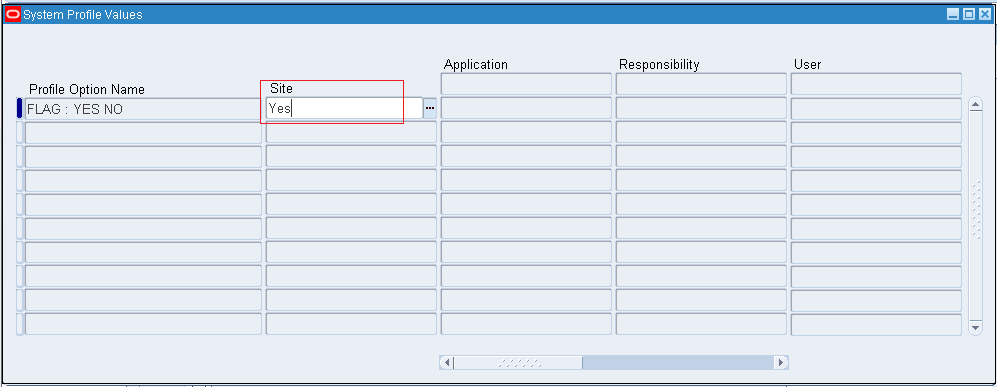
Select Profile Option Value and save you work.


Select one value :-


Autoinvoice Date Issues (So many dates in interface table)

Resolving Autoinvoice Date Issues


If the dates are not provided in the interface tables they will be derived based on your setups.  Date Derivation of the General Ledger date and Transaction date during the process of AutoInvoice depends on the following date columns in the RA_INTERFACE_LINES_ALL table:
  • GL_DATE
  • TRX_DATE
  • SHIP_DATE_ACTUAL
  • SALES_ORDER_DATE
  • RULE_START_DATE 


AutoInvoice determines the General Ledger date for invoices using the following criteria:
  • Does a GL date exist for this invoice in the interface table?
  • Does the invoice use rules?
  • What is the setting of the Derive Date option for this Transaction Batch Source (Yes or No)?   (Receivables Responsibility > Setup > Transaction > Sources)
  • What is the setting of the GL Date in a Closed Period option for this Transaction Batch Source (Adjust or Reject)?  (Receivables Responsibility > Setup > Transaction > Sources)
If you elected to derive the rule start date, AutoInvoice first uses the ship date in the interface table. If the ship date does not exist, AutoInvoice uses the sales order date. If the sales order date does not exist, AutoInvoice uses the date you entered in the Run AutoInvoice window.  The following diagram illustrates this process.


Thursday, 23 February 2017

How to find locked tables in Oracle DB

Below are the queries to find Locked Rows in Oracle DB tables, It will show you all the tables locked, to find your table un-comment  the condition in the query and enter your table name in CAPS :).

For RAC DB :- 

SELECT c.owner,
       c.object_name,
       c.object_type,
       b.sid,
       b.serial#,
       b.status,
       b.osuser,
       b.machine
  FROM gv$locked_object a, gv$session b, dba_objects c
 WHERE     b.sid = a.session_id
       AND a.object_id = c.object_id
--       AND c.object_name = &p_object_name


For Standalone DB :-

SELECT c.owner,
       c.object_name,
       c.object_type,
       b.sid,
       b.serial#,
       b.status,
       b.osuser,
       b.machine
  FROM v$locked_object a, v$session b, dba_objects c
 WHERE     b.sid = a.session_id
       AND a.object_id = c.object_id
--       AND c.object_name = &p_object_name

Query to find runtime of a concurrent program

The following query finds total run-time (in minutes) for a concurrent program. Thus, with a little
modification to this query, you can track which concurrent programs take (very) long time
 to complete


and may need performance tuning.

Input the concurrent program name (tl.user_concurrent_program_name, see below)
according to your search criteria and run the query.

SELECT /*+ rule */
       rq.parent_request_id                   "Parent Req. ID",
       rq.request_id                          "Req. ID",
       tl.user_concurrent_program_name        "Program Name",
       rq.actual_start_date                   "Start Date",
       rq.actual_completion_date              "Completion Date",
       ROUND((rq.actual_completion_date -
           rq.actual_start_date) * 1440, 2)   "Runtime (in Minutes)"
  FROM applsys.fnd_concurrent_programs_tl  tl,
       applsys.fnd_concurrent_requests     rq
 WHERE tl.application_id        = rq.program_application_id
   AND tl.concurrent_program_id = rq.concurrent_program_id
   AND tl.LANGUAGE              = USERENV('LANG')
   AND rq.actual_start_date IS NOT NULL
   AND rq.actual_completion_date IS NOT NULL
   AND tl.user_concurrent_program_name = :P_user_Concurrent_prog_name
 ORDER BY rq.request_id DESC;

Current Running SQLs for a Concurrent Program

Current Running SQL for a Concurrent Program

1. gV$session.
SELECT C.sql_text
,C.module
FROM APPS.fnd_concurrent_requests A
,gV$SESSION B
,gV$SQLAREA C
WHERE A.oracle_session_id = B.audsid
AND B.sql_hash_value = C.hash_value
AND A.request_id = :p_request_id;
Pass the Request ID for the above Query.
SELECT SQLT.hash_value
,SQLT.sql_text
,VSES.username
,VSES.module
,VSES.command
FROM gv$sqltext SQLT
,gv$session VSES
,APPS.fnd_concurrent_requests FCONC
WHERE SQLT.hash_value = VSES.sql_hash_value
AND FCONC.oracle_session_id = VSES.audsid
AND FCONC.request_id = :p_request_id
ORDER BY SQLT.piece
2. V$session :-
SELECT C.sql_text
,C.module
FROM APPS.fnd_concurrent_requests A
,V$SESSION B
,V$SQLAREA C
WHERE A.oracle_session_id = B.audsid
AND B.sql_hash_value = C.hash_value
AND A.request_id = :p_request_id;
Pass the Request ID for the above Query.
SELECT SQLT.hash_value
,SQLT.sql_text
,VSES.username
,VSES.module
,VSES.command
FROM v$sqltext SQLT
,v$session VSES
,APPS.fnd_concurrent_requests FCONC
WHERE SQLT.hash_value = VSES.sql_hash_value
AND FCONC.oracle_session_id = VSES.audsid
AND FCONC.request_id = :p_request_id
ORDER BY SQLT.piece